I have 2 old Hard drives from old PC: 1.5TB and 1TB. They are SATA III HDD (6GBps, 7200 RPM, 64MB Cache). I want to use these drives to store some videos, photos and I don’t want to split the files over two hard drives (managing two hard drives separately). Instead, it would be perfect if all videos/documents are stored in a single, big, virtual storage.
HPZ800 has 4 SATA drawers. So you can easily plug and play.
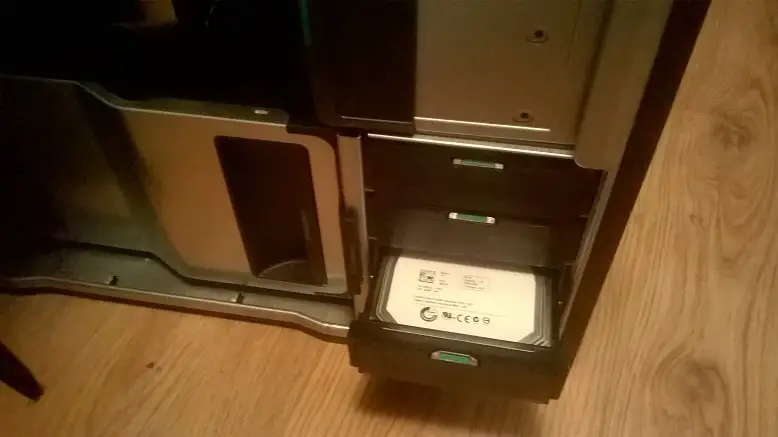
hpz800-sata-drawers
The Windows 10 Storage Space is made for this purpose. You can actually combine multiple physical hard drives into a single virtual, huge disk that can be expanded when space is used out. The storage space can be seen as the software RAID implemented on Windows 10.
Type in ‘Storage Space’ in the start-up menu, that will lead you to the Storage Space configuration.
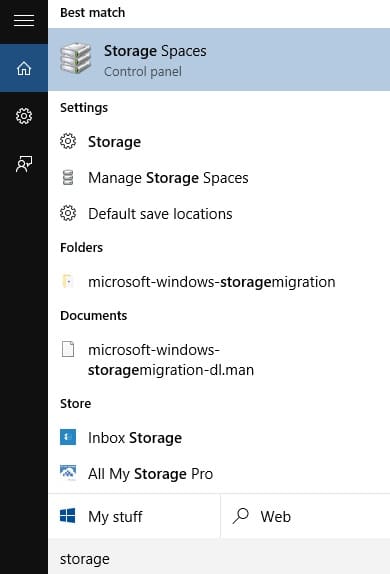
storage-space
Click the [Create A New Pool and Storage Space]
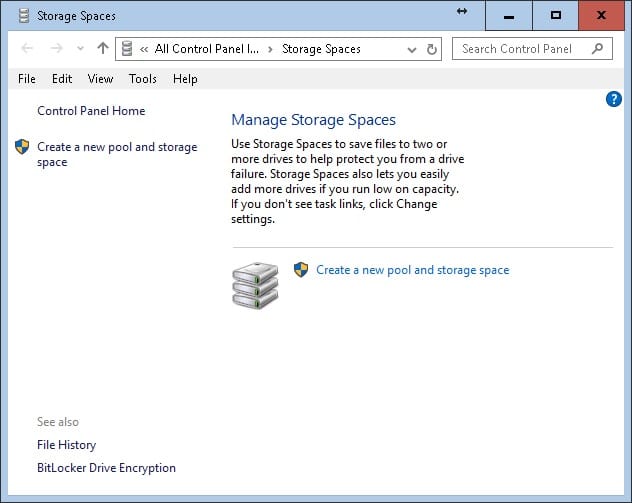
manage-storage-spaces
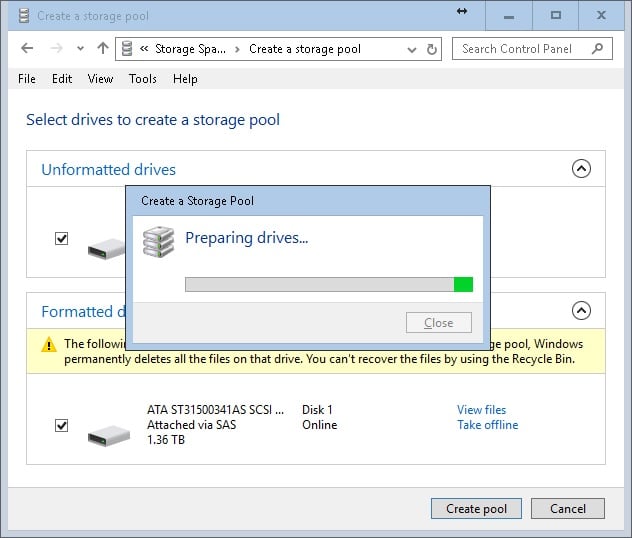
Select the Hard drives you want to be in the Pool. Please note that any drives you select here (including formatted) will be wiped so all existing data will be lost.
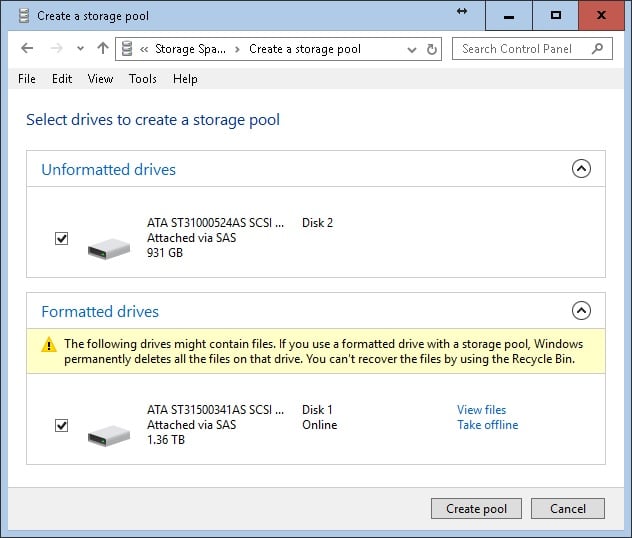
select-drives
Select all drives and the OS formats all of them before combining into a pool.
preparing
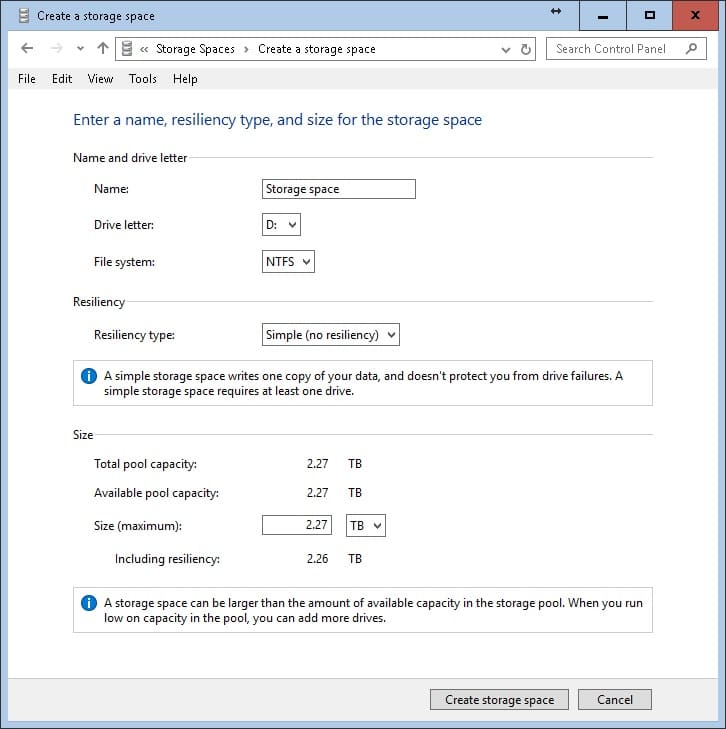
Simple-No-Resiliency similar to RAID 0 where all data is evenly stripped across two or more disks. This improves the disk read/write performance but does not have any redundancy so that data is gone when one of the disks is failed.
simple-no-resiliency
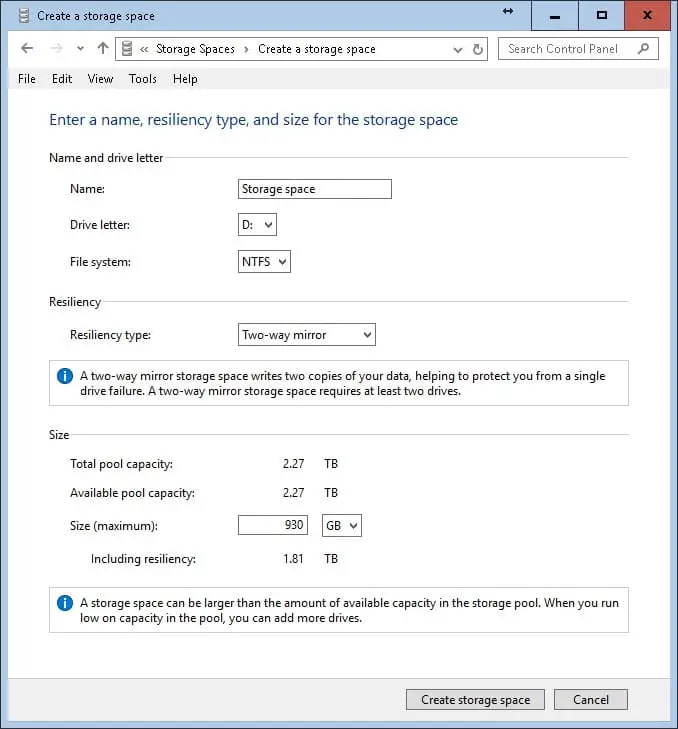
Two-way-mirror – similar to RAID 1 – where all data have two copies on both drives. The data is mirrored so that it can be recovered if any drive is falling. It may have slight impact on the disk write speed. You would need at least two drives for using this.
two-way-mirror
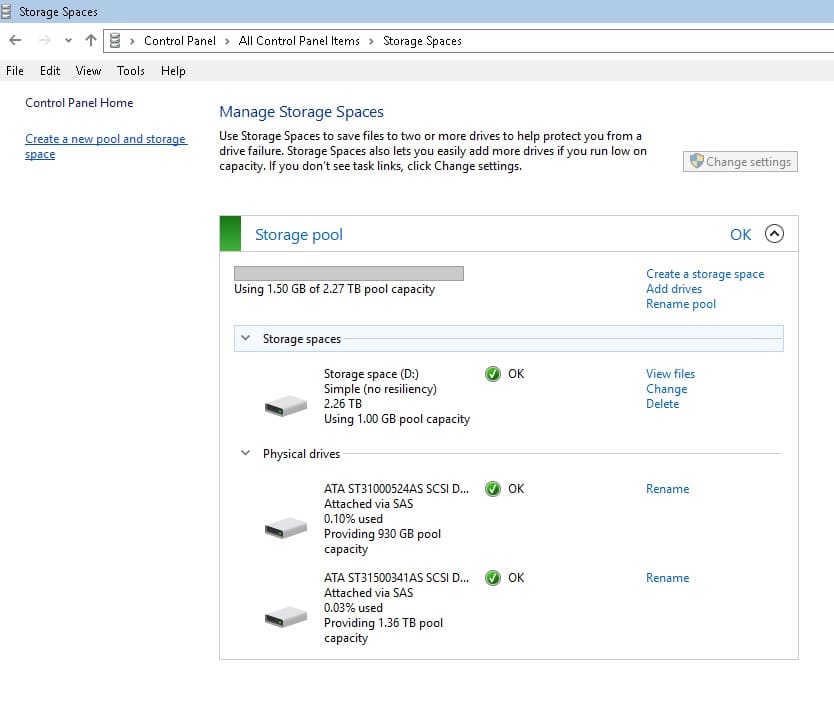
There are other options such as Three-way-mirror where data is copied three times .. Since the data I want to store is not critically important, and I also trust the quality of the HDD, so I pick the first option – RAID 0.
summary
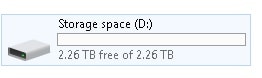
storage-space-drive
It is wonderful that I can expand this virtual HDD once the space is used up, which I cannot do in traditional HDD.
Performance Comparisons
The C drive, master HDD is also brand of Seagate. The three HDDs are all 7200RPM, 64MB cache; so they should all perform similarly if measured individually.
I run the winsat disk -drive command to measure the performance of the master C drive and here is what I get.
Windows System Assessment Tool
Running: Feature Enumeration ''
Run Time 00:00:00.00
Running: Storage Assessment '-drive c -ran -read'
Run Time 00:00:08.14
Running: Storage Assessment '-drive c -seq -read'
Run Time 00:00:08.66
Running: Storage Assessment '-drive c -seq -write'
Run Time 00:00:06.34
Running: Storage Assessment '-drive c -flush -seq'
Run Time 00:00:04.20
Running: Storage Assessment '-drive c -flush -ran'
Run Time 00:00:08.95
Disk  Random 16.0 Read                       2.11 MB/s
Disk  Sequential 64.0 Read                   119.81 MB/
Disk  Sequential 64.0 Write                  147.57 MB/
Average Read Time with Sequential Writes     2.697 ms
Latency: 95th Percentile                     20.369 ms
Latency: Maximum                             92.762 ms
Average Read Time with Random Writes         6.133 ms
Total Run Time 00:00:37.58
and winsat disk -drive d gives me:
Windows System Assessment Tool
Running: Feature Enumeration ''
Run Time 00:00:00.00
Running: Storage Assessment '-drive d -ran -read'
Run Time 00:00:00.92
Running: Storage Assessment '-drive d -seq -read'
Run Time 00:00:04.98
Running: Storage Assessment '-drive d -seq -write'
Run Time 00:00:06.59
Running: Storage Assessment '-drive d -flush -seq'
Run Time 00:00:05.22
Running: Storage Assessment '-drive d -flush -ran'
Run Time 00:00:10.45
Disk  Random 16.0 Read                       32.03 MB/s          6.2
Disk  Sequential 64.0 Read                   12335.15 MB/s          9.9
Disk  Sequential 64.0 Write                  125.21 MB/s          7.0
Average Read Time with Sequential Writes     4.585 ms          6.1
Latency: 95th Percentile                     50.290 ms          1.9
Latency: Maximum                             126.334 ms          7.6
Average Read Time with Random Writes         10.782 ms          4.3
Total Run Time 00:00:29.31
We can see that the read speed is obviously faster with the storage space. The write speed is slightly slower, but it should not be a big problem.
Windows Tools/Tips
- When Your PC Slows Down, It Might Be Time for an Update
- Use DirectX Diagnostic Tool (dxdiag) to View System Information
- Enabling the Debug Console for WSL2 (Windows Subsystem for Linux)
- Hot Weather Causes Intel CPU Throttle and NVidia GPU Crashes on Windows 11 (Blue Screen)
- Two Windows Tips: Turn Off Delivery Optimization and Tweak Privacy Settings
- How to Enable the "God Mode" of Control Panel on Windows?
- Boost System Performance By: Switching to Best Performance Power Mode at Power & Battery on Windows OS
- Laptop Battery Power Drained But Failed to Sleep on Microsoft Windows Surface Studio Pro
- How to Fix a Slow/Incorrect Clock on Windows?
- The Ubuntu Sub System (New Bash Shell) in Windows 10
- How to Lock out (WorkStation) on Windows?
- How to Use Windows 10 - Storage Space to Combine Multiple Physical Harddrives?
- From Windows 1.0 to Windows 10
–EOF (The Ultimate Computing & Technology Blog) —
944 wordsLast Post: Best Black Friday Deals for Programmers!
Next Post: Use Dual Dedicated Graphic Cards on HPZ800 Server: Nvidia Quadro 2000D and ATI Radeon HD 6700