I have been using HP Z800 Server for a couple of years and lately, the Windows clock/time is becoming slow. The time shown on reboot and after awaken from sleep or hibernet is incorrect. This might be caused by a few factors.
CMOS Battery Aging
The CMOS battery is on the motherboard, which records the time and BIOS configurations when the PC is power-off. The CMOS battery will be automatically recharged when the PC is plugged in.
The CMOS aging will make the Clock moving slow. Solution: Replace the CMOS battery – as it is a cheap and effective solution to fix the incorrect time on your system.
Dirt
Dirt damages your computer. Dirt makes your PC malfunctioning that may contribute to a slow clock. Clean the dirt e.g. using your vaccum may help fixing the time.
Windows Time Services
Run ‘services.msc’ by Ctrl + R. Select Windows Time Services from the List. Make sure the ‘Automatic Start’ is selected and saved. Restart the Windows Time Service.
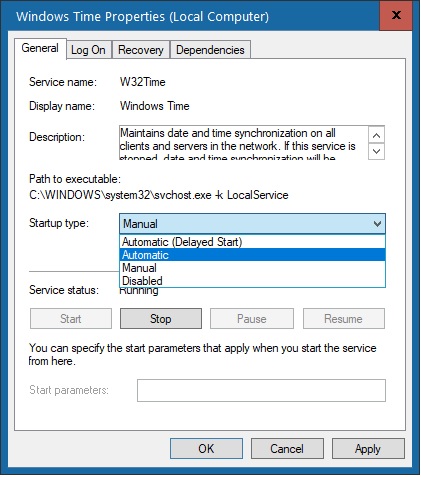
windows-time-properties-local-computer
Alternatively, you can restart the Windows Server by using the following two commands:
$ net stop w32time
The Windows Time service is stopping.
The Windows Time service was stopped successfully.

$ net start w32time
The Windows Time service is starting.
The Windows Time service was started successfully.
Synchronise Internet Time
We can configure the PC to synchronise the time from Internet time providers. Launch ‘Date and Time’ in Control Panel. Choose Tab ‘Internet Time’, Change Settings, then Tick ‘Synchronise Internet Time’. You may also click to update the time immediately. You can also choose which Time server to synchronise time from, the default server is time.windows.com
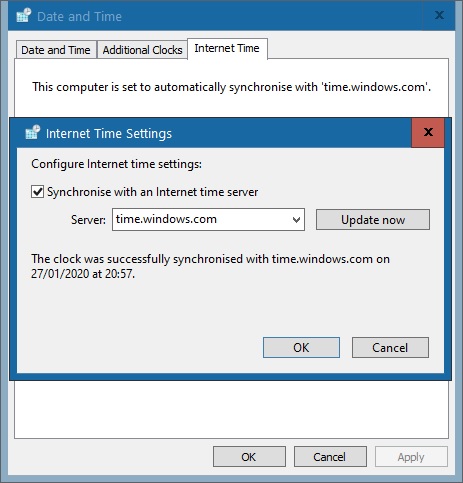
date-and-time-internet-time-settings-synchronise
You may run the following command to synchronise the time. You can also add this to the Job Scheduler if you prefer to run it periodically.
$ w32tm /resync
Sending resync command to local computer
The command completed successfully.
We can create a Windows Batch Script to explicitly synchronise the Windows Time periodically.
$ type timesync.cmd
@echo off
:repeat
 w32tm /resync
 timeout 60 > nul  # every 60 seconds
goto repeat
Make the script automatically run on reboot. You can also run w32tm /query /status to confirm the last time synchronisation.
$ w32tm /query /status
Leap Indicator: 3(not synchronized)
Stratum: 0 (unspecified)
Precision: -23 (119.209ns per tick)
Root Delay: 0.0283558s
Root Dispersion: 8.3099902s
ReferenceId: 0x00000000 (unspecified)
Last Successful Sync Time: 27/01/2020 21:33:43
Source: time.windows.com,0x9
Poll Interval: 10 (1024s)
Windows Tools/Tips
- When Your PC Slows Down, It Might Be Time for an Update
- Use DirectX Diagnostic Tool (dxdiag) to View System Information
- Enabling the Debug Console for WSL2 (Windows Subsystem for Linux)
- Hot Weather Causes Intel CPU Throttle and NVidia GPU Crashes on Windows 11 (Blue Screen)
- Two Windows Tips: Turn Off Delivery Optimization and Tweak Privacy Settings
- How to Enable the "God Mode" of Control Panel on Windows?
- Boost System Performance By: Switching to Best Performance Power Mode at Power & Battery on Windows OS
- Laptop Battery Power Drained But Failed to Sleep on Microsoft Windows Surface Studio Pro
- How to Fix a Slow/Incorrect Clock on Windows?
- The Ubuntu Sub System (New Bash Shell) in Windows 10
- How to Lock out (WorkStation) on Windows?
- How to Use Windows 10 - Storage Space to Combine Multiple Physical Harddrives?
- From Windows 1.0 to Windows 10
–EOF (The Ultimate Computing & Technology Blog) —
576 wordsLast Post: How to Put Current Running Program in Background without Being Terminated when Disconnected on Linux?
Next Post: The Difference Between Java Map's compute, computeIfAbsent, and computeIfPresent