Windows Operating System by default has a control panel since early versions of Windows such as Windows 3.x, but it only shows most frequent options and it hides some options.
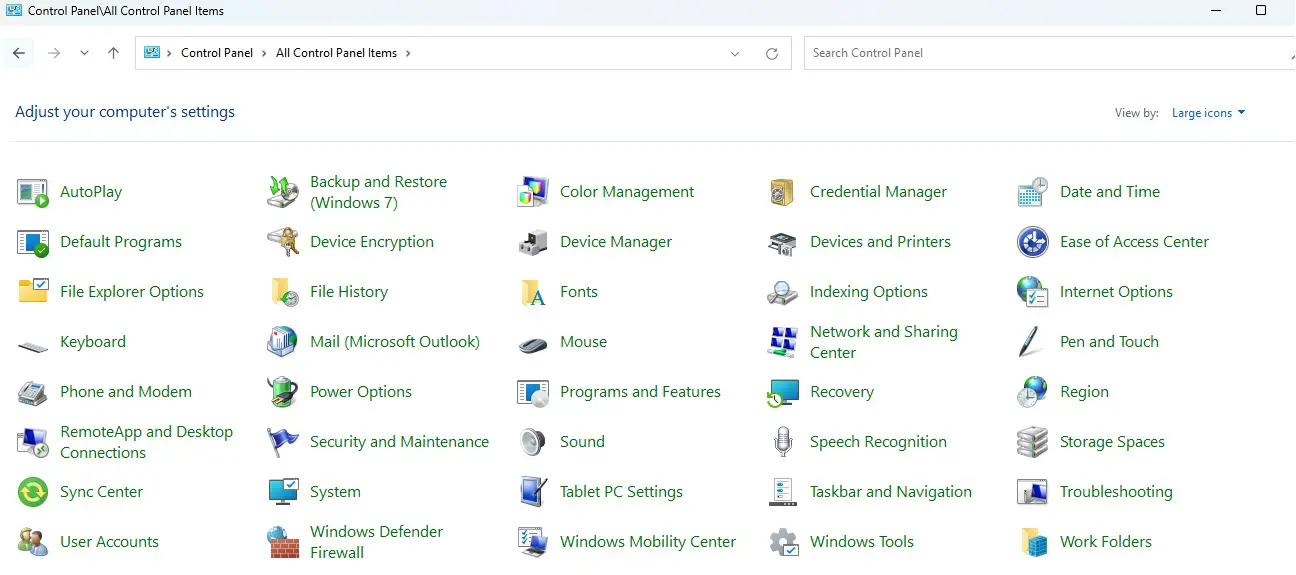
Windows Control Panel View by Large Icons
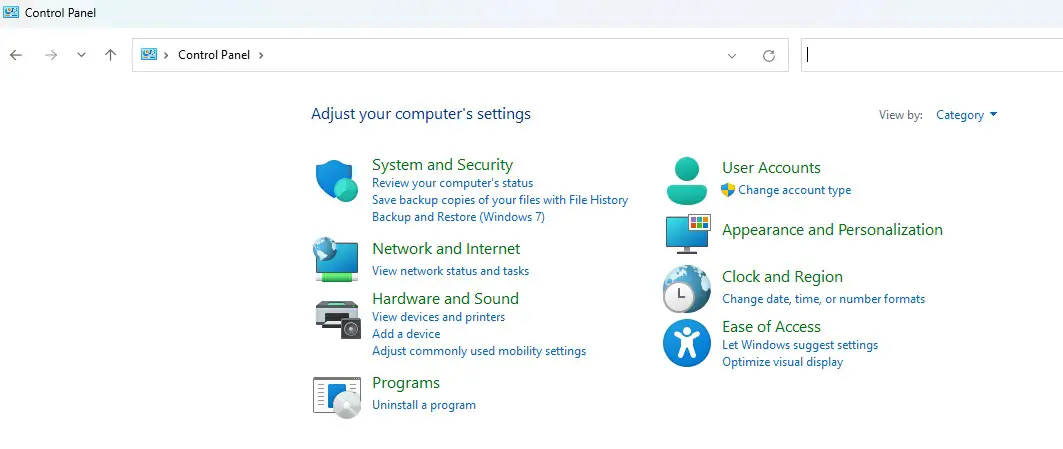
Windows Control Panel View by Category
Enable the “God Mode” of Control Pane
It is quite simple to enable the “God Mode” which shows everything e.g. all the options in one window.
Step 1: Go to Desktop, right click to make a new folder
Step 2: Rename the folder as the following:
GodMode.{ED7BA470-8E54-465E-825C-99712043E01C}
That is it! The folder will be automatically changed to a shortcut to the “God Mode” of Control Panel, and the icon will also be updated accordingly:

Windows God Mode of Control Panel Icon
More than 200 Options in “God Mode” of Control Panel – All Options are listed in a single window.
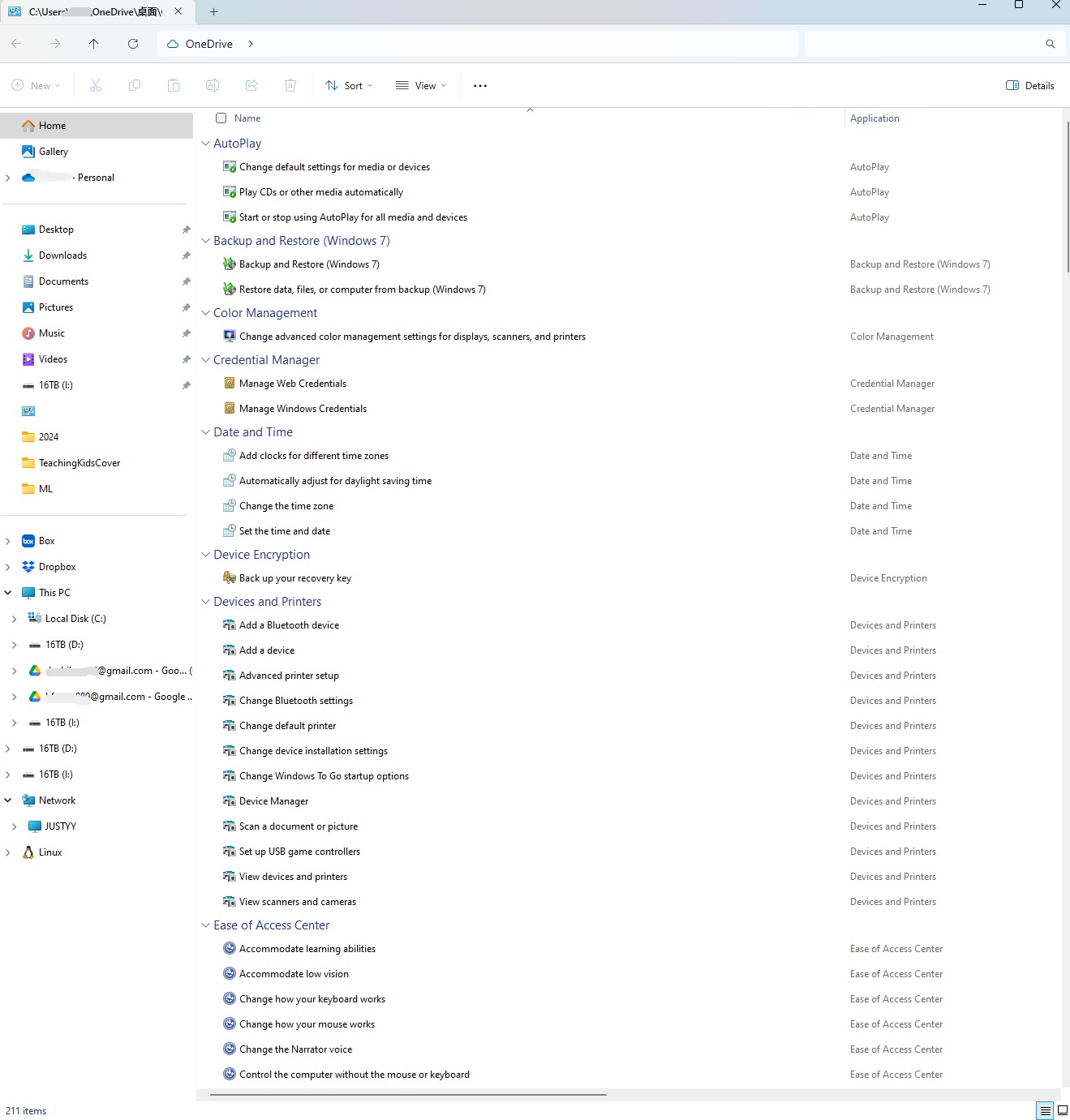
Windows the God Mode View of Control Panel Showing All Options
Tested on Windows 11.
Windows Tools/Tips
- When Your PC Slows Down, It Might Be Time for an Update
- Use DirectX Diagnostic Tool (dxdiag) to View System Information
- Enabling the Debug Console for WSL2 (Windows Subsystem for Linux)
- Hot Weather Causes Intel CPU Throttle and NVidia GPU Crashes on Windows 11 (Blue Screen)
- Two Windows Tips: Turn Off Delivery Optimization and Tweak Privacy Settings
- How to Enable the "God Mode" of Control Panel on Windows?
- Boost System Performance By: Switching to Best Performance Power Mode at Power & Battery on Windows OS
- Laptop Battery Power Drained But Failed to Sleep on Microsoft Windows Surface Studio Pro
- How to Fix a Slow/Incorrect Clock on Windows?
- The Ubuntu Sub System (New Bash Shell) in Windows 10
- How to Lock out (WorkStation) on Windows?
- How to Use Windows 10 - Storage Space to Combine Multiple Physical Harddrives?
- From Windows 1.0 to Windows 10
–EOF (The Ultimate Computing & Technology Blog) —
412 wordsLast Post: Teaching Kids Programming - Reachable Nodes With Restrictions (Graph Theory, Iterative Depth First Search Algorithm, Undirected/Unweighted Graph)
Next Post: The Simple Steps to Convert Manifest V2 to V3 for Chrome Extensions