Why are catching any general exceptions bad? They are just to suppress run time errors which may cause some more serious and worse errors later.
try {

} catch (Exception) {
  // this is bad exception handling, which just hides errors.
}
The total number of general-exceptions should be as small as possible. It could be and indicator of the code/software quality. To record/monitor this number along the builds on CI (Continuous Integration) servers e.g. Jenkins, we can write a small script in Powershell to loop for all source code (e.g C#)
# replace this accordingly
$SolutionDir = "C:\Project"
$files = Get-ChildItem "$SolutionDir" -filter "*.cs" -Recurse | Where-Object {!(($_.FullName -like "*esigner*.cs") -or ($_.FullName -like "*AssemblyInfo*.cs"))}
$cnt = 0

for ($i = 0; $i -lt $files.Count; $i++) {
    $filename = $files[$i].FullName
    if (Test-Path $filename) {
        $content = (Get-Content $filename -Raw)
        if ($content.Length -gt 0) {
            $matches = [regex]::matches($content, "catch\s*\(\s*Exception[\w\s]*\)")
            $cnt = $cnt + $matches.Count
        }
    }
}
The variable $cnt contains the total number of general-exceptions in the project solution. The Where-Object command excludes the *Designer.cs and *AssemblyInfo.cs where these are generally do not contain exceptions (machine-generated). Filtering them out improves scanning speed.
The regex expression \s* matches zero or more white-spaces. [\w\s]* matches alphabetic characters or spaces. So this catches nearly all variants: e.g. catch(Exception) or catch (Exception ex) or catch ( Exception).
However, this does not catch the general exception in the following format:
try {

} catch {
  // this is bad exception handling, which just hides errors.
}
The exceptional case can be captured by using pattern: “catch\s*\{” and for the curl brace not on the same line, you could use “catch\s*$\s*\{“. Then to sum up these three situations, the regular expressions to match any general exceptions in C# is:
$pattern = "catch(\s*\(\s*Exception[\w\s]*\)|\s*$\s*\{|\s*\{)"
To plot this number on CI management pages in browser, you would need to install a plot plugin jenkis ci build server and write the numbers in either CSV, XML or properties format. Properties file is the easiest one.
YVALUE=2343
URL=https://helloacm.com
To write this in powershell, it is easy:
function WritePropertyFile($filename, $YVALUE, $URL) {
    $content = "`r`nYVALUE=" + $YVALUE.Trim() + "`r`n" + "URL=" + $URL.Trim() + "`r`n"
    $content | Out-File -Encoding ascii -Force $filename.Trim()
}

WritePropertyFile "general-exceptions.txt"  $cnt "https://helloacm.com"
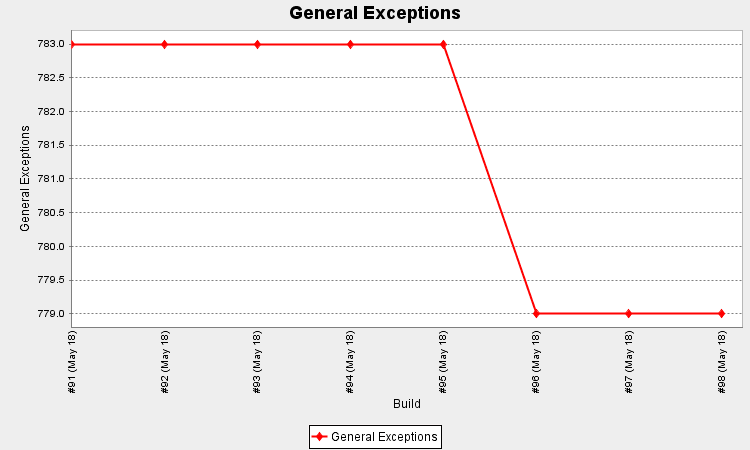
general-exceptions-build-server-jenkins-continuous-server
–EOF (The Ultimate Computing & Technology Blog) —
498 wordsLast Post: How to Backup Crontab Job List in Crontab Job?
Next Post: C# Custom Logger Sample for MSBuild