At System -> Power & Battery, there is a Power Mode Setting which is default to “Recommended”. You can either choose “Better Performance” or “Best Performance” to Boost Your System immediately.
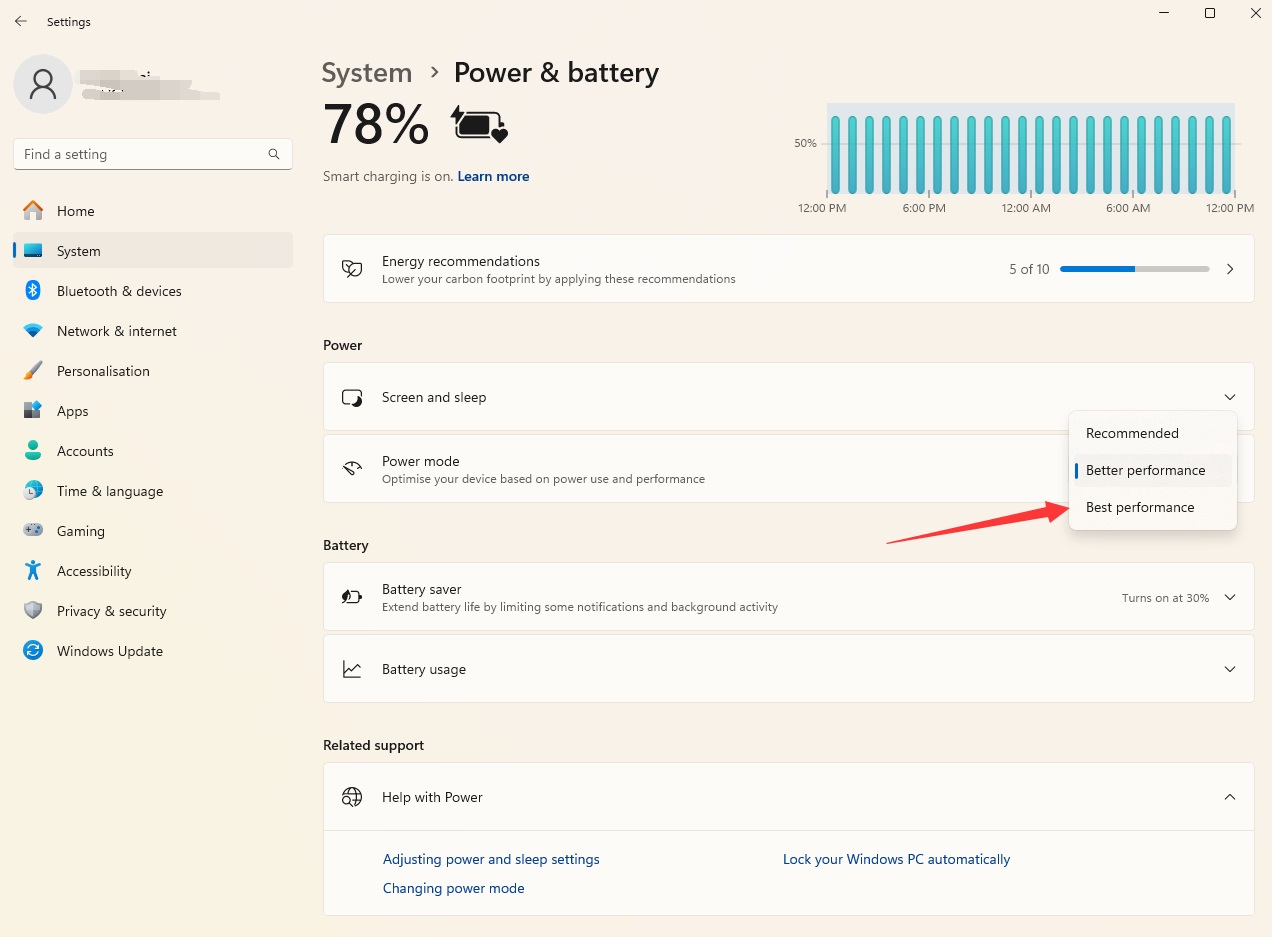
Enable “Best Performance” for Windows at Power & Battery
In my case, switching to “Best Performance” immediately takes effects, and I notice that the CPU Fan becomes noiser, with the CPU frequency jumping to normal which is about 3.3GHz for a Surface Pro Studio Laptop (11th Gen Intel(R) Core(TM) i7-11370H)
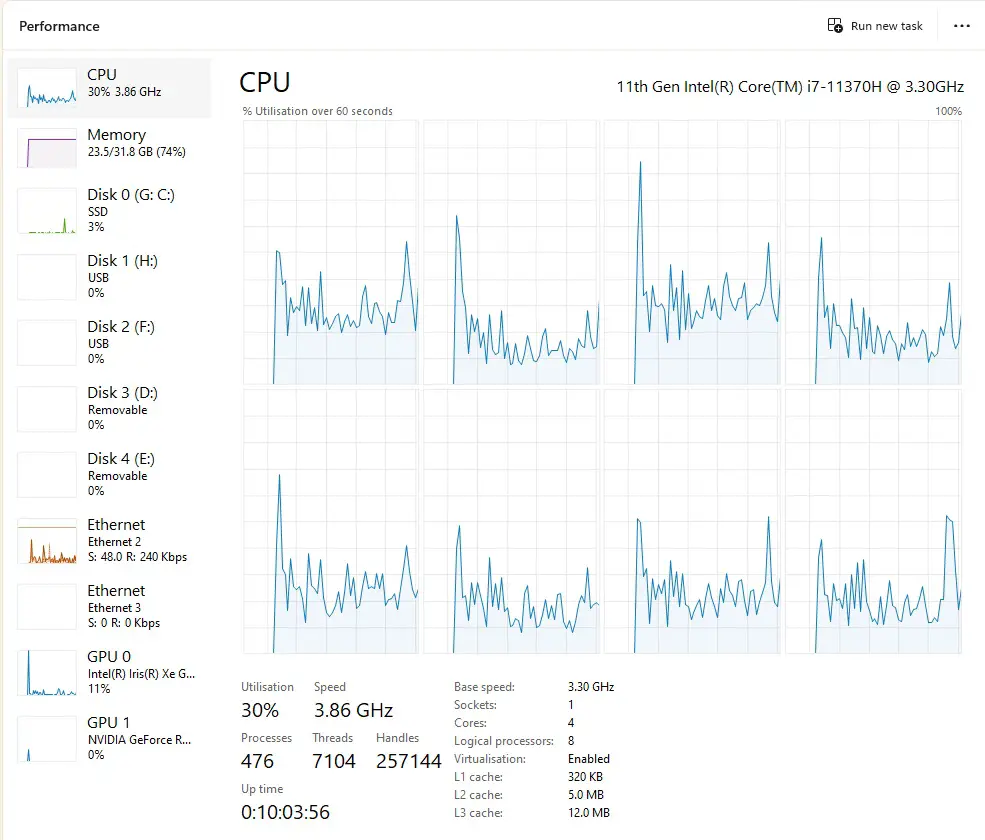
Windows Task Manager – Surface Studio Pro – 11th Gen Intel(R) Core(TM) i7-11370H @ 3.30GHz
CPU
11th Gen Intel(R) Core(TM) i7-11370H @ 3.30GHz
Base speed: 3.30 GHz
Sockets: 1
Cores: 4
Logical processors: 8
Virtualisation: Enabled
L1 cache: 320 KB
L2 cache: 5.0 MB
L3 cache: 12.0 MBUtilisation 28%
Speed 3.83 GHz
Up time 0:10:05:53
Processes 479
Threads 7022
Handles 258807
Windows Tools/Tips
- When Your PC Slows Down, It Might Be Time for an Update
- Use DirectX Diagnostic Tool (dxdiag) to View System Information
- Enabling the Debug Console for WSL2 (Windows Subsystem for Linux)
- Hot Weather Causes Intel CPU Throttle and NVidia GPU Crashes on Windows 11 (Blue Screen)
- Two Windows Tips: Turn Off Delivery Optimization and Tweak Privacy Settings
- How to Enable the "God Mode" of Control Panel on Windows?
- Boost System Performance By: Switching to Best Performance Power Mode at Power & Battery on Windows OS
- Laptop Battery Power Drained But Failed to Sleep on Microsoft Windows Surface Studio Pro
- How to Fix a Slow/Incorrect Clock on Windows?
- The Ubuntu Sub System (New Bash Shell) in Windows 10
- How to Lock out (WorkStation) on Windows?
- How to Use Windows 10 - Storage Space to Combine Multiple Physical Harddrives?
- From Windows 1.0 to Windows 10
–EOF (The Ultimate Computing & Technology Blog) —
Last Post: Introduce to Solana Blockchain
Next Post: Teaching Kids Programming - Algorithms to Find the Vertex of Zero Indegree in a Directed Acyclic Graph